The bedroom at the far end of the house is a dead zone. The video call keeps freezing whenever someone microwaves leftovers downstairs. If this sounds familiar, you don’t necessarily have a bad internet plan—you probably have a coverage problem, and coverage problems are almost always fixable without a service upgrade. The trick is figuring out whether the issue is physical, technical, or just a matter of outdated equipment.
Understanding Why Wi-Fi Signals Weaken
Wi-Fi is a radio signal, and radio signals behave the way you’d expect any wave to behave: they lose strength over distance and they struggle to pass through dense material. A single router sitting in a hallway closet might blast a strong signal ten feet in every direction, but that signal degrades fast once it hits a brick wall, a mirror, a stone countertop, or even a large fish tank. Metal is especially brutal—refrigerators, ductwork, and metal studs in walls can block or reflect signals in ways that create surprising dead spots in otherwise open rooms.
Distance matters too, but it’s not just about square footage. A 1,500-square-foot single-story home with an open floor plan often gets better coverage than an 1,000-square-foot home with several interior walls and a finished basement. Signal has to travel through obstacles, not just space, so a home’s layout matters as much as its size.
Then there’s interference from other wireless devices. Older routers running on the 2.4GHz band share that frequency with cordless phones, baby monitors, some Bluetooth speakers, and even microwave ovens. In densely packed neighborhoods, your neighbors’ routers are also competing for the same channels, which can slow things down even if your own equipment is working fine. This is why two households with identical routers can have very different experiences depending on how many networks are nearby.
Placing Your Router for Maximum Reach
Before spending money on new hardware, it’s worth testing whether simply moving the router solves the problem. Routers are often shoved into a corner near the cable jack, which is convenient for wiring but terrible for signal distribution. A router pushed against an exterior wall is essentially broadcasting half its signal outside the house.
The ideal placement is central, elevated, and open. Think a shelf in a hallway or living room rather than a closet floor. Height helps because Wi-Fi signals spread outward and downward more effectively than they climb upward through multiple floors. In a two-story home, placing the router on the ceiling of the first floor, so to speak, gives both levels a fighting chance.
A few practical adjustments make a real difference:
- Keep the router away from microwaves, cordless phone bases, and large metal appliances.
- Avoid tucking it inside a cabinet or behind a TV stand—enclosed spaces trap heat and block signal.
- If antennas are external and adjustable, angle them in different directions rather than pointing them all the same way, since this spreads coverage more evenly in a room with multiple stories or wide layouts.
- Keep it at least a few feet away from other electronics that emit their own wireless signals, like Bluetooth speakers or smart hubs.
Sometimes the fix is embarrassingly simple. Moving a router from a basement utility room to a central hallway on the main floor can turn a spotty connection into a reliable one, all without spending a cent.

Upgrading Your Network Without Overspending
If repositioning the router doesn’t solve the problem, the next step is understanding what upgrades actually make sense. A single router, no matter how well placed, has a physical limit to how far its signal can travel. For larger homes or homes with multiple floors, one device often isn’t enough, and this is where extenders and mesh systems come in.
A traditional Wi-Fi extender picks up the existing signal and rebroadcasts it, which can help but often at a reduced speed, since the extender has to receive and resend data on the same channel. It’s a reasonable low-cost fix for a single problem room, like a garage office or a far bedroom, but it’s not a great solution for whole-home coverage.
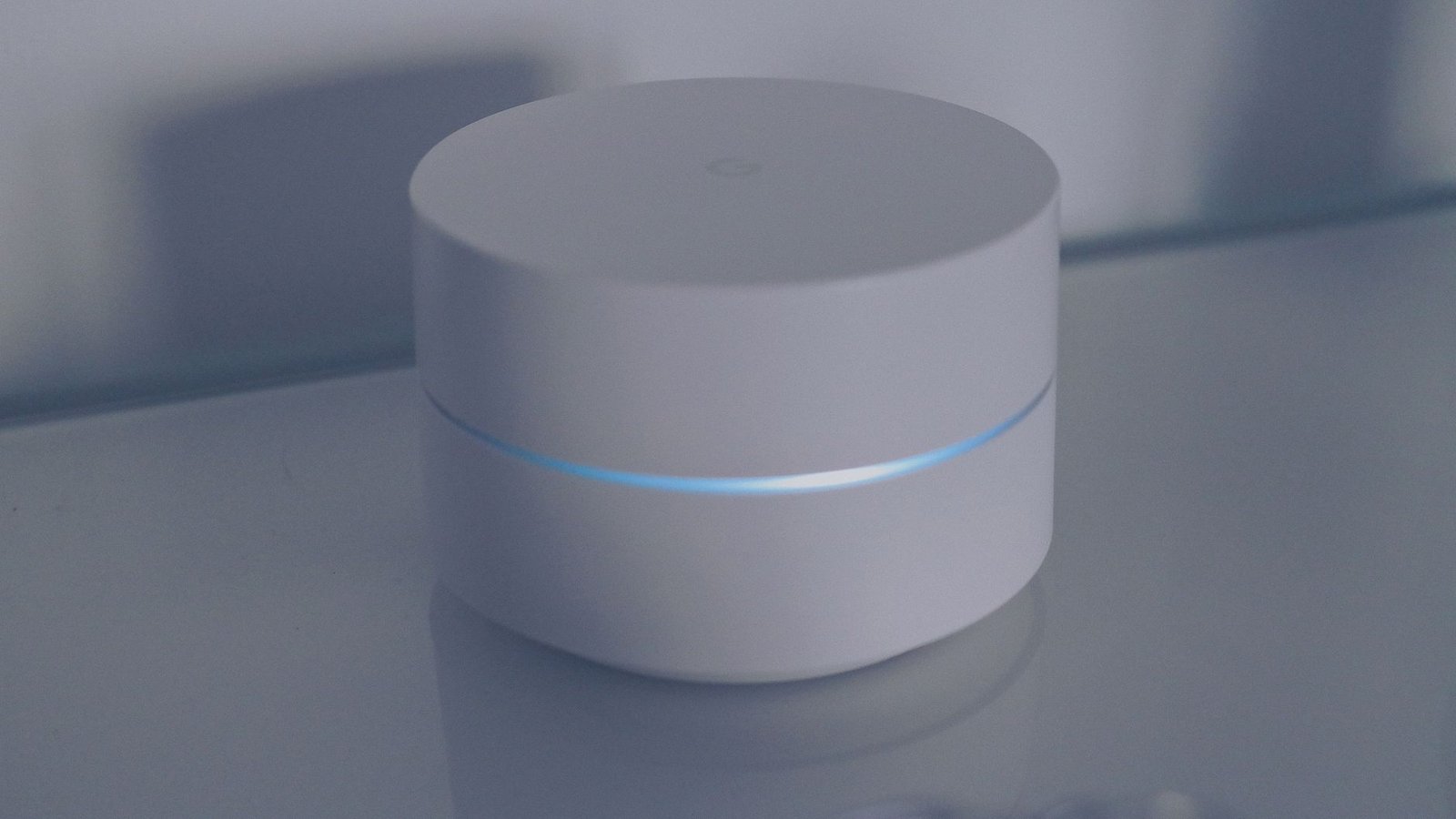
Mesh networks work differently. Instead of one router straining to cover an entire house, a mesh system uses two or three units placed throughout the home, all communicating with each other to create a single, seamless network. As you walk from room to room with a laptop or phone, the device automatically connects to whichever mesh point offers the strongest signal, without you noticing a handoff. For most multi-story or spread-out homes, this tends to be the more reliable long-term investment compared to extenders.
It’s worth noting that a mesh system isn’t automatically necessary for everyone. A small apartment or a compact single-story home might do perfectly well with just a well-placed router and no additional hardware at all. Buying a three-piece mesh kit for a 900-square-foot apartment is likely overkill.
Fine-Tuning Settings for Better Performance
Hardware isn’t the whole story. A surprising amount of coverage improvement comes from adjusting settings that most people never touch. Logging into the router’s admin panel—usually accessible through a browser by typing the router’s IP address—opens up a handful of useful options.
One of the most effective changes is switching the router’s channel, particularly for those still relying heavily on the 2.4GHz band. Because so many devices and neighboring networks crowd this frequency, manually selecting a less congested channel can noticeably reduce interference. Many modern routers also broadcast a 5GHz band, which offers faster speeds over shorter distances and suffers less interference, making it a better choice for devices close to the router, while 2.4GHz remains useful for devices farther away or behind walls, since it penetrates obstacles more effectively.
Firmware updates matter too, even though they’re easy to ignore. Manufacturers routinely release updates that improve stability and performance, and an outdated router is often working with old, inefficient software even if the hardware itself is fine. Most modern routers allow updates through their app or web interface, and it’s worth checking every few months.
Finally, consider how many devices are actually connected. A household with a dozen smart devices, several phones, laptops, streaming boxes, and a smart thermostat all pulling from the same network puts real strain on a single router, especially an older one. Reducing background bandwidth use, disconnecting unused devices, or splitting devices across bands can ease congestion without requiring new equipment at all.
Improving home Wi-Fi coverage rarely requires a dramatic overhaul. Most problems come down to a router stuck in the wrong spot, outdated firmware, or a network straining under more devices than it was designed to handle. Start with placement, test what a mesh system or extender might realistically add, and don’t skip the settings that are often left untouched for years. Small adjustments, made in the right order, tend to solve far more problems than buying the newest, most expensive router on the shelf.

Leave a Reply